
NiOps AI · Desktop ops
Eight core capabilities,
matching the Desktop menu
Host profiles, PTY terminal, 3-step agent, approval gate, on-device vault, recorder, skills/packages, audit and access. No promise of web SSH, cloud secrets, or SFTP.
Enough to operate — not one extra tab
SSH on your machine
Host profiles, interactive PTY terminal, command bar with Commander hints.
- checkProfile CRUD + connection test
- checkImport from PuTTY, WinSCP, MobaXterm…
- checkConnect → Terminal from the Dashboard
AI diagnoses first
Three fixed steps: clarify the goal → investigate with evidence → propose a fix.
- checkInvestigate with read-only commands
- checkChanging commands usually need approval
- checkVerify again after the fix
Secrets stay on your machine
The local vault holds passwords, keys, passphrases. Secrets are never uploaded.
- checkLock / unlock the vault
- checkRecovery Package .enc per secret
- checkCloud keeps profile metadata only
Team + control
Local · My · Protected · Team. One Active Workspace at a time.
- checkWorkspace Security Policy is the safety ceiling
- checkTrusted devices, revocable
- checkApprove access, approve AI commands, audit
Enough to operate Linux — not one extra tab
01Dashboard · Host profiles
Cards for the selected workspace, widgets from packages.
Linux profile CRUD: name, host, port, user, environment, tags. Attach a Vault credential, test the connection, open Terminal from the Dashboard.
- Profile cards by Active Workspace, drag to reorder
- Connection test and OS inventory
- Detached window for one profile
- DB / vault / version health in the footer
02Import · Scan SSH sessions
Bring an existing address book into NiOps, without the passwords.
Sources: PuTTY, WinSCP, FileZilla, mRemoteNG, SecureCRT, MobaXterm. Passwords from those tools are dropped on import.
- Scan config files on your machine
- Duplicates: overwrite / skip / merge
- Secrets do not come along — reattach from Vault
03Terminal · PTY
Interactive SSH on your machine, not through the web.
xterm PTY, command bar + Commander hints, AI Ops panel, Skills (F7), detached terminal window.
- Connect from Dashboard or a profile
- Commander command bar
- AI Ops panel beside the terminal
- No SFTP / file-transfer UI
04AI Ops · 3-step agent
Clarify → investigate → propose. Desktop is what actually runs.
No direct-op path that skips diagnosis. Read commands in the investigate step; changing commands usually need approval.
- A goal contract, or a follow-up question
- Investigate with read commands and evidence
- Fix + verify after you approve
- Pre-router: hello, help, cancel, test — no model call
05Vault · Secrets on the machine
Passwords, keys, passphrases never go to the cloud.
Lock/unlock the vault, test login, Recovery Package .enc per secret. Export/import the whole vault (passphrase ≥ 12).
- Local secret store on the device
- Attach a credential to a host profile
- Recovery Package .enc per secret
- Public keys on the server only via Access → SSH Keys
06Recorder · Many hosts
Record once, replay across a fleet.
Records, Templates, Runs tabs. Record from the terminal (F8) or write a list. Run on many profiles after a risk confirm.
- Preview commands and target hosts
- Auto-answer prompts from the script
- Per-host results in the local log
- No cron / {{ var }} substitution yet
07Skills & Packages
Teach the agent your runbooks; widgets on the Dashboard.
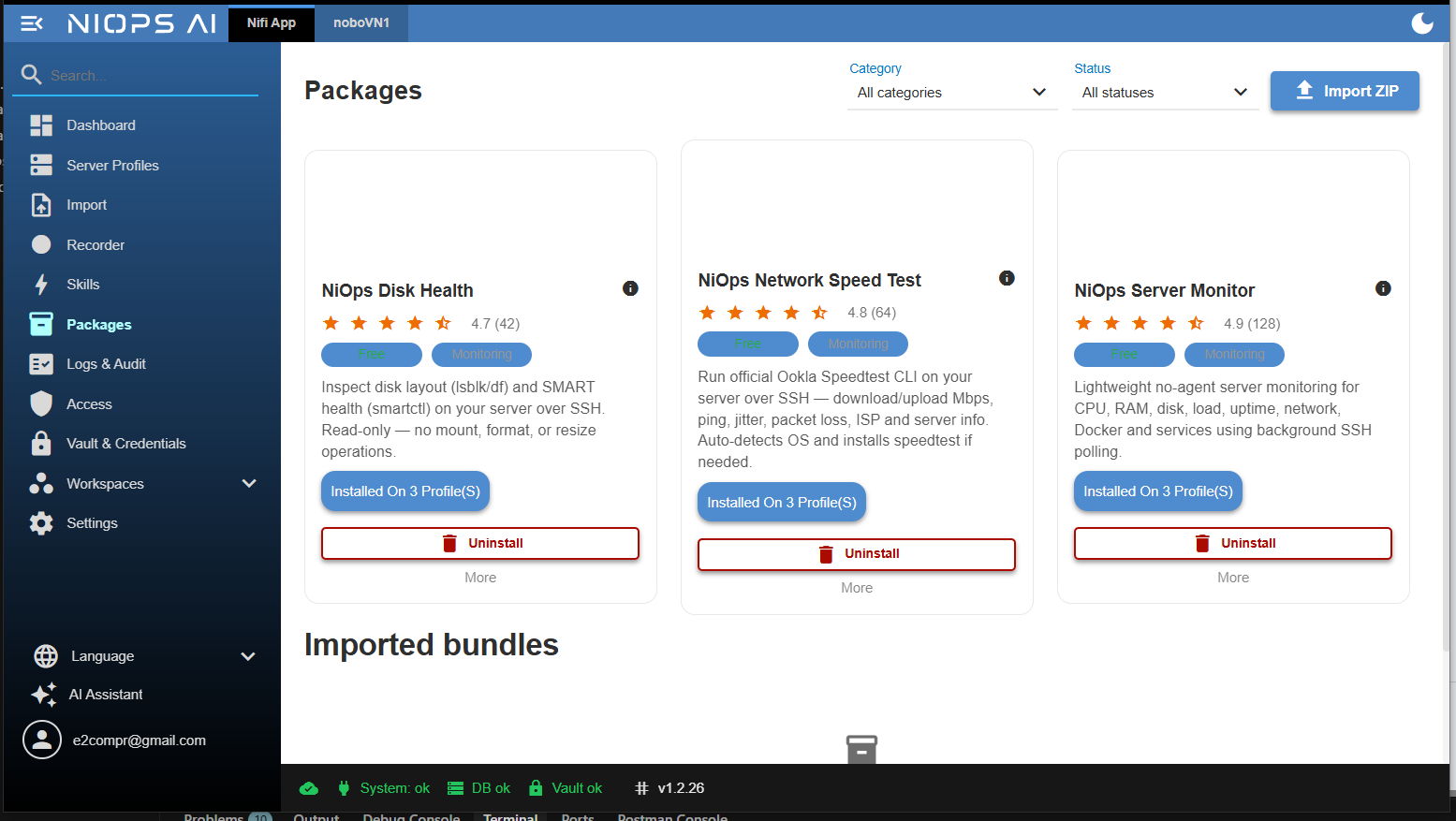
Skills are Markdown, installed as ZIP / built-in, run on an open PTY. Packages: Server monitor, Speed test, Disk health.
- A skill runs on the open session, it does not open SSH
- Install a package on a profile → Dashboard widget
- Import a bundle, see its commands before install
- Pro includes the NiOps package
08Audit & Access
Logs on the machine; access and approval in the cloud.
Logs: Overview, Audit, System, Terminal. Access (cloud): policy, roles, members, devices, grants, approvals.
- Filter by date, workspace, host — secrets redacted
- Logs do not sync to the cloud by default
- Workspace Security Policy is the safety ceiling
- Approvals: access requests and AI commands
Extend it: install a package, write an add-on, or take one from the community
A package installs on a host profile and shows up as a Dashboard widget. Skills are Markdown packs that teach the agent your runbooks. Both import from files, so you can build internally or use a community pack.
Official packages
Server Monitor, Network Speed Test, Disk Health — installed over Desktop SSH, widgets on the Dashboard. Pro includes the NiOps package.
Skills you write
Pack an ops runbook as Markdown, install as ZIP. The agent runs the skill on the open PTY session and does not open its own SSH.
Community add-ons
Import someone else's bundle, see which commands it runs before you install. Share your package or skill back with the team.
Download Desktop and SSH now
Local Mode runs with no account: import existing SSH sessions, open a terminal, use the vault and recorder. Sign in only when you need metadata sync, access, or cloud audit.
No, not to SSH. Access, cloud audit and sync need a sign-in.
No. Sync pushes profile metadata; secrets stay in the vault on your machine.
A workspace type stricter than My: sensitive actions need a grant or approval.